
How to Find Your Physical (MAC) Address
Every network interface has a MAC address (Media Access Controller) also known as the physical address. This is the actual hardware address that the lowest level of the network uses to communicate. The MAC address is used to assign the TCP/IP address by means of DHCP (Dynamic Host Configuration Protocol). For that reason, the MAC address of a machine is required so that it can be properly configured for the engineering network.
The physical (MAC) address is an 8 byte number such as 08:00:20:9A:38:34. On Windows it will sometimes be represented with dashes between the numbers. Please always include the colons (:'s) between the numbers. Letters must also be capitalized on the form.
Instructions to properly identify the MAC address for each corresponding Operating System is listed below:
Linux
- Open a terminal and use the
ifconfigcommand. The MAC address will be listed next to HWaddr.
- If your Linux OS does not have the
ifconfigcommand, you may also use theip addrcommand.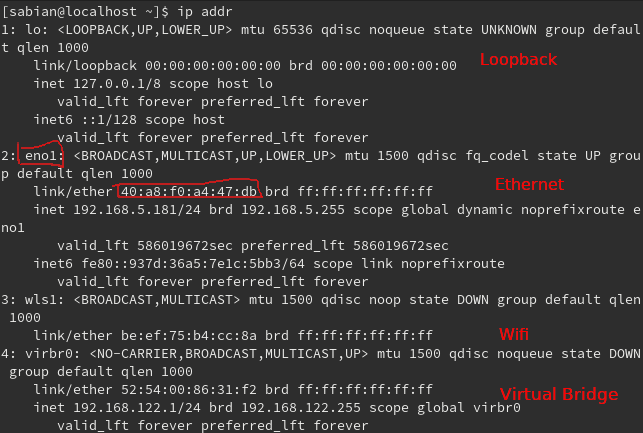
macOS
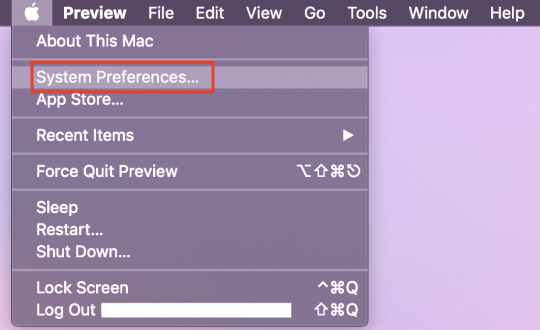
- Select System Preferences from the Apple menu located on the top left-hand corner.
- Select Network from the System Preferences panel.

- Select the Advanced button corresponding to the Built-in Ethernet or Network Adapter (depending on how you access the network).
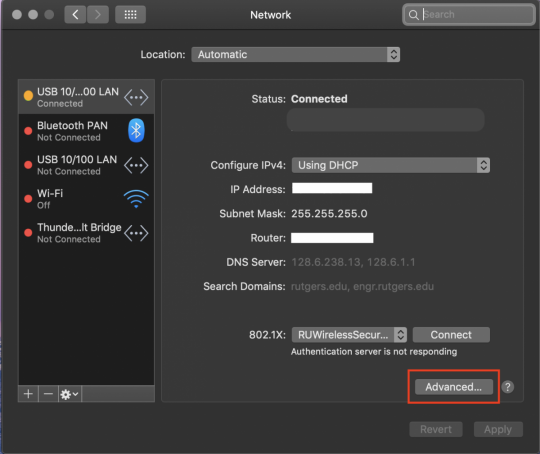
- Select Hardware from the centered menu of the page. Your MAC address will be listed next to a field labeled with the same name.

Windows
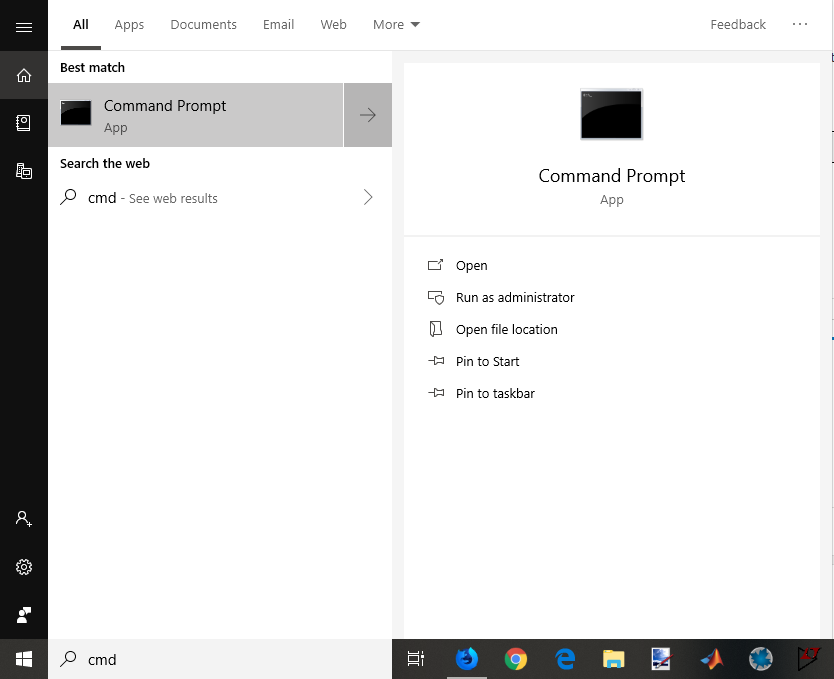
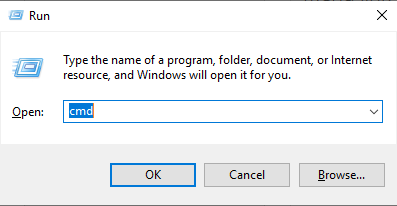
- Open command prompt either by searching for it using the search bar in your menu or by doing the following key combination, typing cmd, and hitting enter: Windows Key + R
- In the command prompt window, you can type either
getmacoripconfig /all. If Ethernet is the only connection to your computer at the time you rungetmac, then the physical address whose Transport Name isn't media disconnected is the MAC address you are looking for. Alternatively, when runningipconfig /all, the MAC address you are looking for is located under Ethernet adapter Ethernet: Physical Address.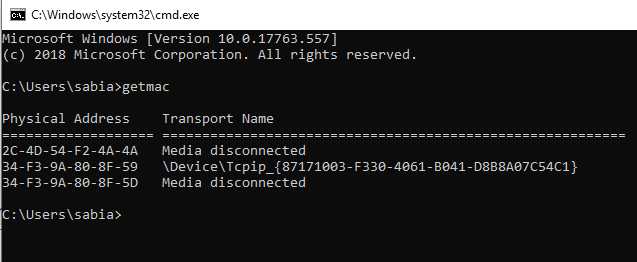

OR
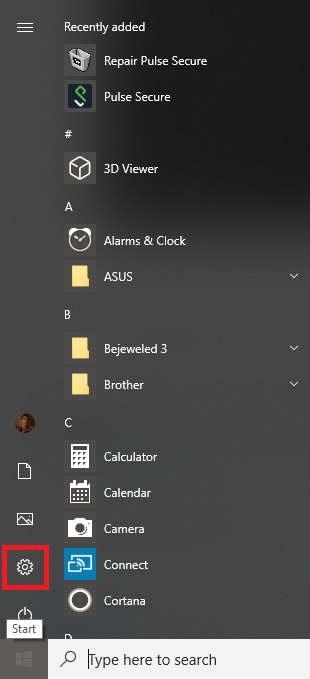
- On Windows 10, select Start (Microsoft icon) and then choose Settings (gear icon) from the left-hand menu.
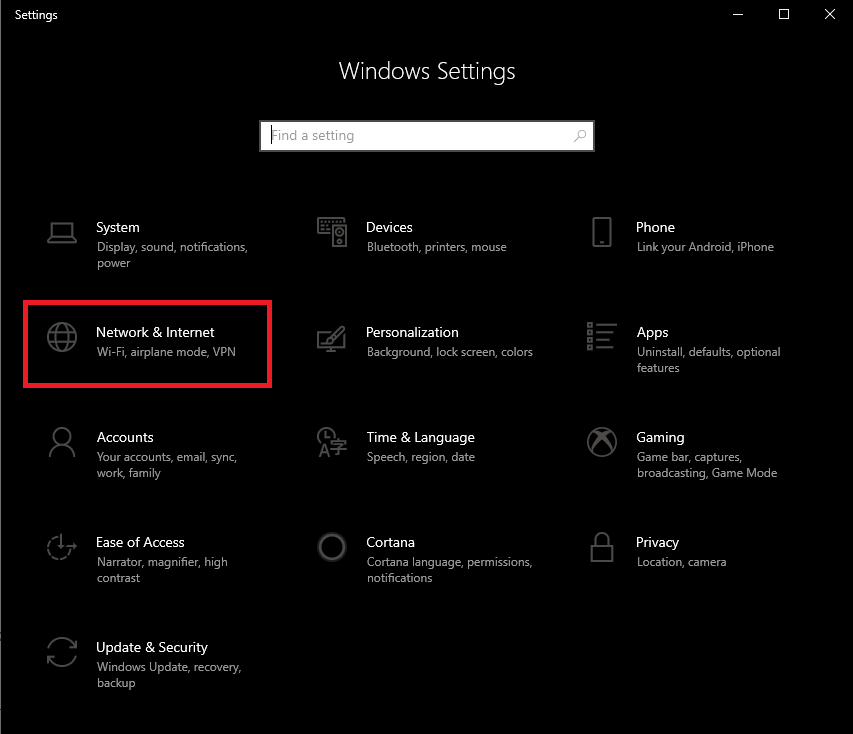
- Select Network and Internet from the Windows settings menu.
- On the Status page, choose View your network properties at the bottom of the Change your network settings menu.
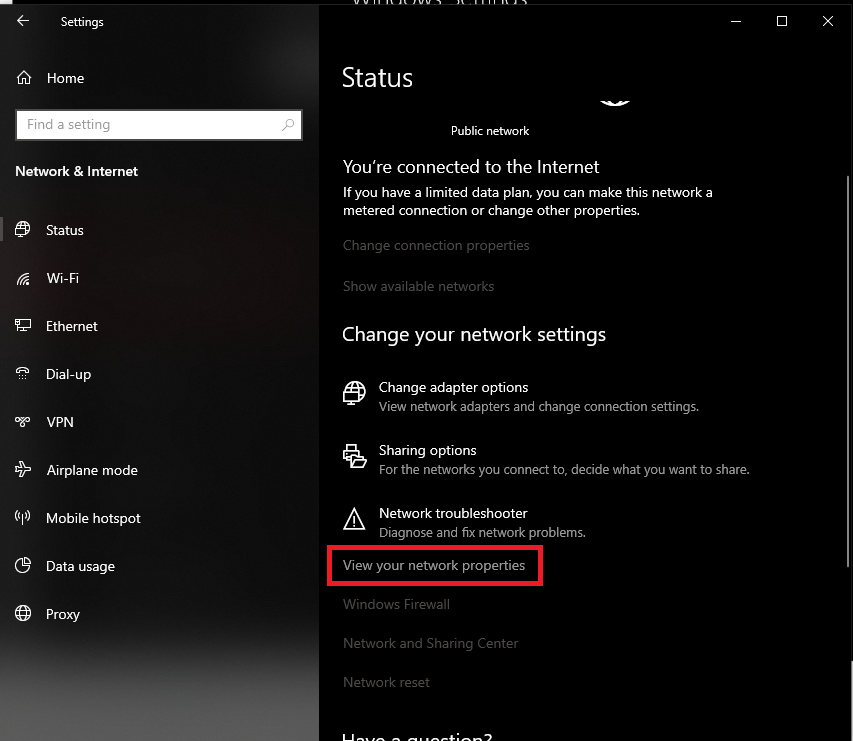
- Your MAC address will be listed next to a field labeled Physical address (MAC).
